1. Upload your root and intermediate certificates to Headwind MDM in the "Files" section (do not assign them to any configuration). Copy their URLs, they will be used to preconfigure Headwind MDM agent.
2. Make the Headwind MDM agent available in your network over plain HTTP. Since Headwind MDM uses Tomcat which listens port 8080, you can just replace https://your-local-domain with http://your-local-domain:8080 in the launcher URL.
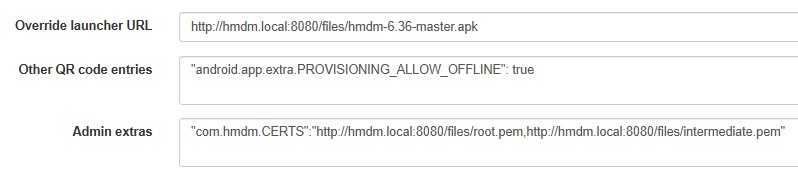
3. Open the configuration details, MDM settings tab. Make the following adjustments:
3.1. Paste the plain HTTP based URL of Headwind MDM launcher in the "Override launcher URL" field. This will prevent "Unknown certificate" error and the enrollment failure (HTTP based enrollment is allowed by Android).
3.2. Add the entry "android.app.extra.PROVISIONING_ALLOW_OFFLINE": true in the "Other QR code entries" field.
3.3. Add the certificate URLs (comma-separated) to the "Admin extras" field ("com.hmdm.CERTS" attribute). Note: you can use HTTPS URLs here, as Headwind MDM will ignore the certificate error when downloading certificates.
Try to enroll the device. In most cases, this configuration should work as expected.
If the enrollment fails, the most probable failure reason is the requirement of Internet connection during the enrollment. In that case, the only option is to use an intermediate Internet-connected network for enrollment (see details here: https://h-mdm.com/private-network/).