To use the photo plugin (available in Headwind MDM Premium and Enterprise), request the technical support for the mobile agent APK, and add it to all relevant configurations.
To configure the plugin, open Settings - Photos.
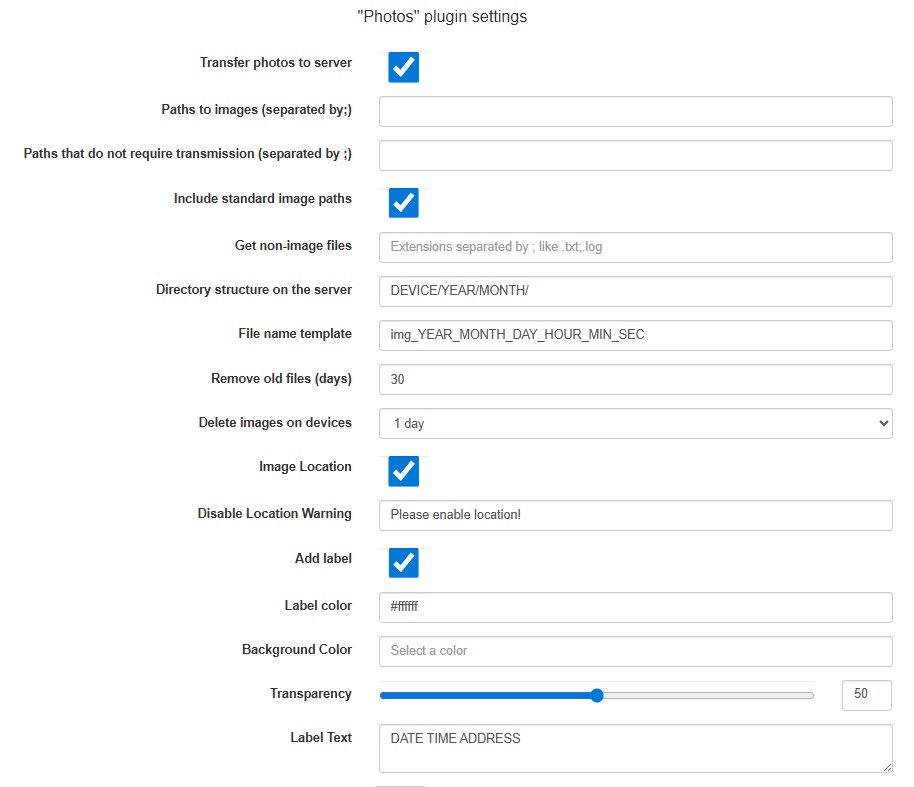
The following options are available:
Transfer photos to server - set this flag to activate the mobile agent
Paths to images - if you need to retrieve images from non-standard places (standard are DCIM/Camera and DCIM/100ANDRO), list them here.
Paths that do not require transmission - this field can be used to rotate files in the directory (remove old files) without transmission to the server.
Include standard image paths - set this flag to retrieve images from DCIM/Camera and DCIM/100ANDRO.
Get non-image files - additional file extensions in case you'd like to transfer non-image files.
Directory structure on the server - specify the directory structure on the server where images are stored
File name template - specify the template for file names on the server (NAME is the original file name on the device).
Remove old files (days) - use this parameter to remove old files on the server (0 - do not remove).
Delete images on devices - configure the file rotation parameters on devices.
Image Location - set this flag to geotag images.
Disable Location Warning - a custom warning text prompting user to turn on location tracking.
Add label - set this flag to add the location text label to images.
Label color, Background Color, Transparency - text label parameters.
Label Text - configure the template of the text label (address is determined from the geolocation by the Android OS built-in method).
If you have configured everything, but the Photo plugin still doesn't work properly:
- Run the photo plugin mobile agent APK manually
- Add verbose logging for the com.hmdm.sendphoto package and track the mobile agent work in Functions - Logs.